On this page
Key takeaways
- Count one category at a time (a cycle count) so the store never has to close.
- Count blind: the person counting should not see the number the system expects.
- Recount every difference before you correct anything, and find the cause.
- In MazalPOS, the register counts blind, holds any mismatch for a recount, and lists missing stock in a report.
To count stock in a retail store, count one category at a time without looking at the system number, compare your counts with what the system expects, recount anything that does not match, and only then correct the stock. Doing it a little at a time, on a schedule, is called a cycle count, and it finds missing stock much sooner than one big count at the end of the year.
What a cycle count is
A full count means counting every product in the store on one day, which usually means closing early or staying late. A cycle count is the same job cut into pieces: you count one category, one shelf or one wall each time, and over a few weeks you have counted everything. Nothing closes, the counter stays fresh, and a problem shows up within days instead of at the end of the year.
Pick the order on purpose. Start with the products that sell fastest, the ones that cost the most, and the small ones that are easy to pocket. Slow, cheap, bulky items can wait for a later turn.
Get ready before you count
Five minutes of setup saves an hour of arguing about numbers later.
- Pick the part to count. One category or one shelf, not the whole store.
- Print a count sheet. A list of the products in that part with an empty box beside each one, so nobody counts from memory.
- Pick who counts. If you can, use someone who does not receive stock or ring sales on that shelf. For expensive items, have a second person count too.
- Freeze movement on that part. No deliveries put away and no transfers out until the count is sent.
- Count everywhere the product lives. The shelf, the backroom, the display case and the window. Stock in a drawer is still stock.
You do not have to stop selling. Customers can keep buying from the shelf while you count, as long as you count what is physically there and write it down as you go.
Count blind
Count blind: the person counting should not see the number the system expects. If they see "12", they will count 12, because it is easy to nudge a count toward the number you were told. The whole point of a count is to find the places where the system and the shelf disagree, and a count that copies the system finds nothing.
Count each product twice if it is easy to do: once by counting, once by a quick look to see if the number feels right. Keep open boxes, tester units and damaged items separate, and write them down on their own line so they do not get mixed into sellable stock.
Compare, then recount
When the count is finished, compare it with the system, product by product. Most lines will match. A few will not. Do not correct anything yet. First, recount every line that does not match, ideally by a different person. A large share of differences are simply a miscount, a box in the wrong place, or a product counted on the wrong shelf, and a recount clears them in a minute.
Only a difference that survives the recount is real. Write down each one as the system number, the counted number and the difference. A negative difference means stock is missing. A positive difference means you have more than the system thinks.
A worked example
Here is a made-up example, with example numbers, for a small gift shop counting its candle and gift wrap shelf.
- Scented candle: the system expects 24, the shelf has 21. Difference: minus 3.
- Greeting card: the system expects 60, the shelf has 60. Difference: 0.
- Gift wrap roll: the system expects 10, the shelf has 12. Difference: plus 2.
The cards match, so they are done. The candles and the wrap are recounted by a second person. The candles come back as 21 again. The wrap comes back as 12 again. Both differences are real.
Now the owner looks for reasons. The wrap rolls: a delivery last week had two extra rolls that were never entered, so the plus 2 is explained. The candles: no return, no breakage, no unrecorded transfer. Nothing explains minus 3, so it is recorded as lost stock. The system is corrected to 21 candles and 12 rolls, the owner moves the candles to the front counter where staff can see them, and the shelf gets counted again in two weeks. One shelf, three products, a few minutes of counting and one real finding.
Find the cause before you correct
A correction fixes the number. It does not fix the reason, so look for the reason before you accept the difference. The usual suspects:
- A sale that was rung as a different product.
- Stock that arrived but was never entered.
- A return that went back on the shelf without being recorded.
- Damaged or expired stock thrown away without a note.
- A transfer between the shelf and the backroom that was not entered.
- Stock that left without being paid for.
If the same product comes up short again and again, the cause is a habit, not bad luck, and that is worth knowing.
How often to count
There is no single rule. A schedule you actually keep beats a perfect one you skip. A practical way to set it up: count the fast sellers and the expensive items more often, count slow items less often, and make sure every category comes up in a rotation. A small store can count one category a week. A bigger store can count one a day. Count extra before a busy season, so you start it knowing what you really have, and count again after it, to see what the rush did to your shelves.
Count stock in MazalPOS
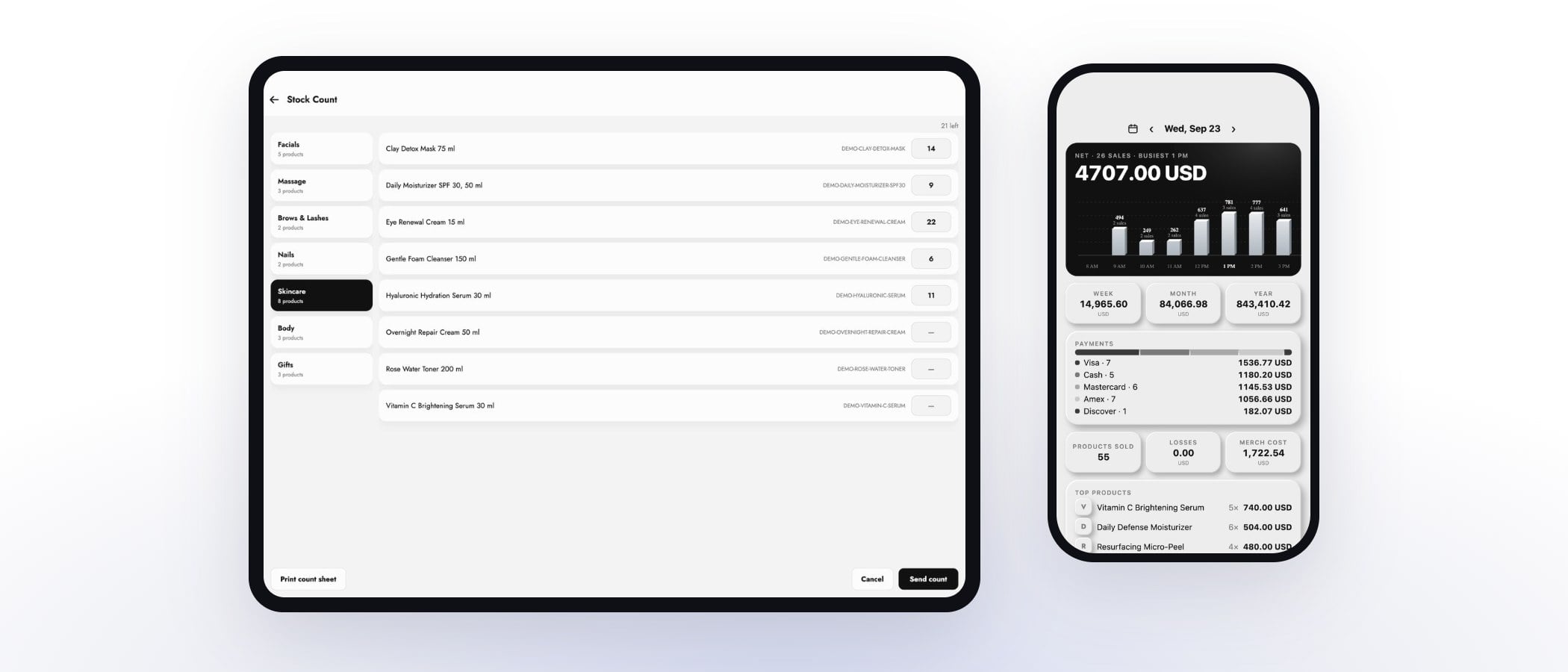
MazalPOS has a stock count built into the register and the inventory, so the routine above takes a few taps. This is what the count screen does, checked in the product:
- The count screen is the register's sell screen with a quantity box instead of a price: categories down the left, products on the right.
- It is blind on purpose. The box never shows what the system expects.
- It tells you how many products are left to count, and you can send only the ones you counted.
- You choose who is counting, so the count is recorded under a name.
- Print count sheet prints the list for the shelf.
- If every line matches, the count posts straight away. If some lines do not, the register holds the count and shows each one as expected, counted and the difference, then lets you count again or send it anyway. The differences are recorded either way.
- A sale rung while you count does not wipe out a difference, because each line is measured against what the system held at the moment you counted it.
Afterwards, the Missing tab in inventory reports lists the lines that came up short or over, by product and date, so you can see which products keep going missing. Inventory comes with both plans, Essentials at $99 a month and Growth at $169 a month, each priced per location, with 14 days free and no card.
Common questions
A cycle count is a stock count done in small pieces, one category or shelf at a time, on a rotating schedule. Over a few weeks you count everything without closing the store.
There is no single rule. Count fast sellers and expensive items more often, slow items less often, and make sure every category is counted in a rotation you can keep.
No. Count one category at a time and keep selling. In MazalPOS, a sale rung during the count does not erase a difference the count found.
No. The count screen is blind on purpose. Differences are shown after you send the count, before anything is committed, and you can count again or send it anyway.
Sources
- MazalPOS product: the register stock count screen and the Missing inventory report, checked in the product in November 2026.

Written by Mike Akop, founder of MazalPOS. We build and support the register, online store and staff app that stores from Las Vegas to Honolulu run on. Questions about this guide? Talk to a real person.